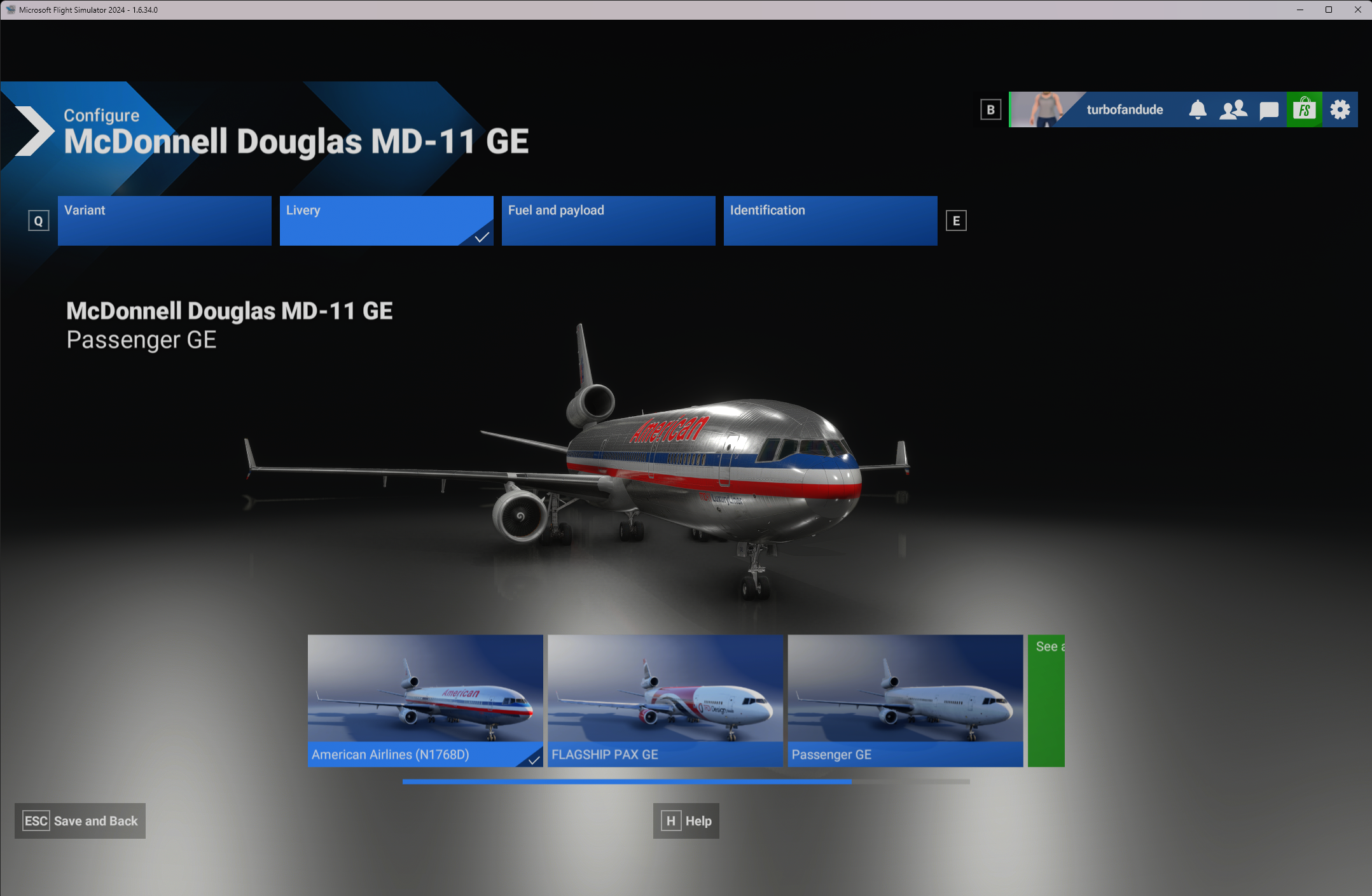
To install liveries for the TFDi Design MD-11 in MSFS/FS24 please follow the steps below;
For this example, we will use the Lufthansa Cargo GE livery D-ALCM.
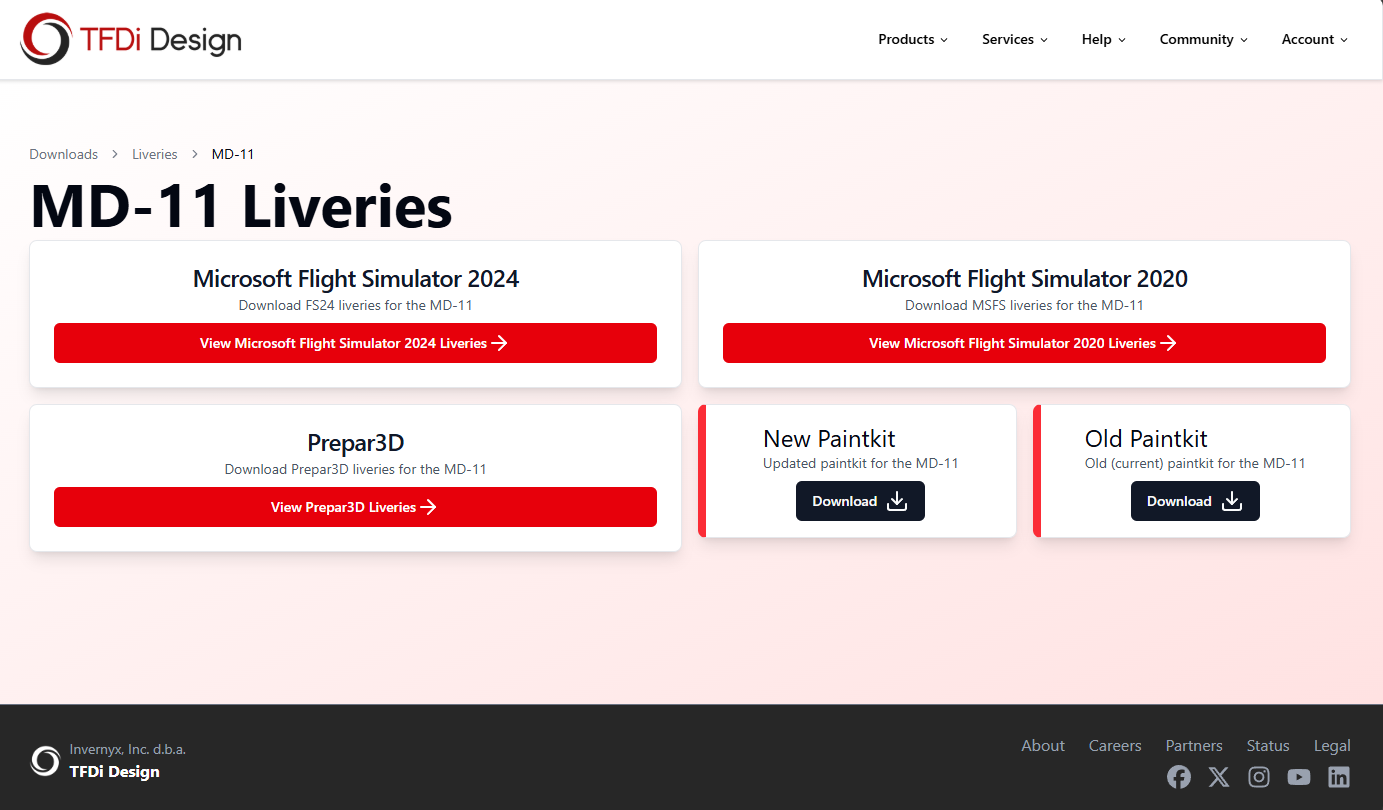
1) Go to https://tfdidesign.com/downloads/liveries/md11 and choose Flight Simulator 2020 or Flight Simulator 2024:
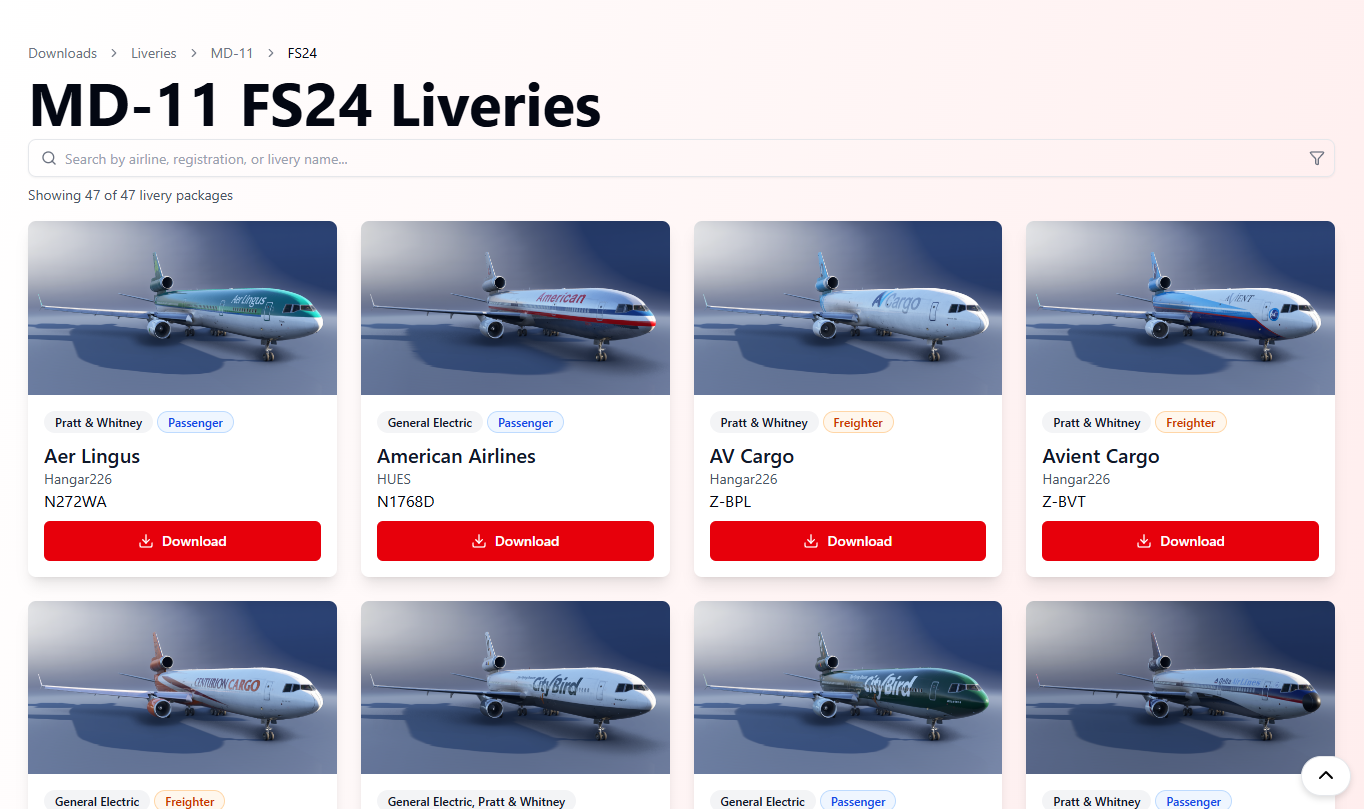
2) Click 'Download' on the livery you wish to download:
3) Once the livery has been downloaded extract it from the zip file:

NOTE -The native Windows unzip tool may fail with an error due to long-file path. There are two ways to resolve this:
1.) Download a 3rd party unzip tool, like WinZip - https://www.winzip.com/
2.) Perform the long file path steps outlined here - https://learn.microsoft.com/en-us/windows/win32/fileio/maximum-file-path-limitation?tabs=registry#enable-long-paths-in-windows-10-version-1607-and-later
4) Place the extracted folder into your MSFS/FS24 "Community Folder". The default locations of this folder for each are below.
Flight Simulator 2020 (Microsoft Store)
- %localappdata%\Packages\Microsoft.FlightSimulator_8wekyb3d8bbwe\LocalCache\Packages\Community
Flight Simulator 2020 (Steam)
- %appdata%\Microsoft Flight Simulator\LocalCache\Packages\Community
Flight Simulator 2024 (Microsoft Store)
- %localappdata%\Packages\Microsoft.Limitless_8wekyb3d8bbwe\LocalCache\Packages\Community2024
Flight Simulator 2024 (Steam)
- %appdata%\Microsoft Flight Simulator 2024\Packages\Community2024
Flight Simulator 2020
5) When you have loaded the simulator, please select the correct version of the MD-11 (engine option and variant):

6) Using the LIVERIES tab you will now be able to see the installed livery:

Flight Simulator 2024
5) Select the MD-11 in the aircraft selection menu and click 'Configure':
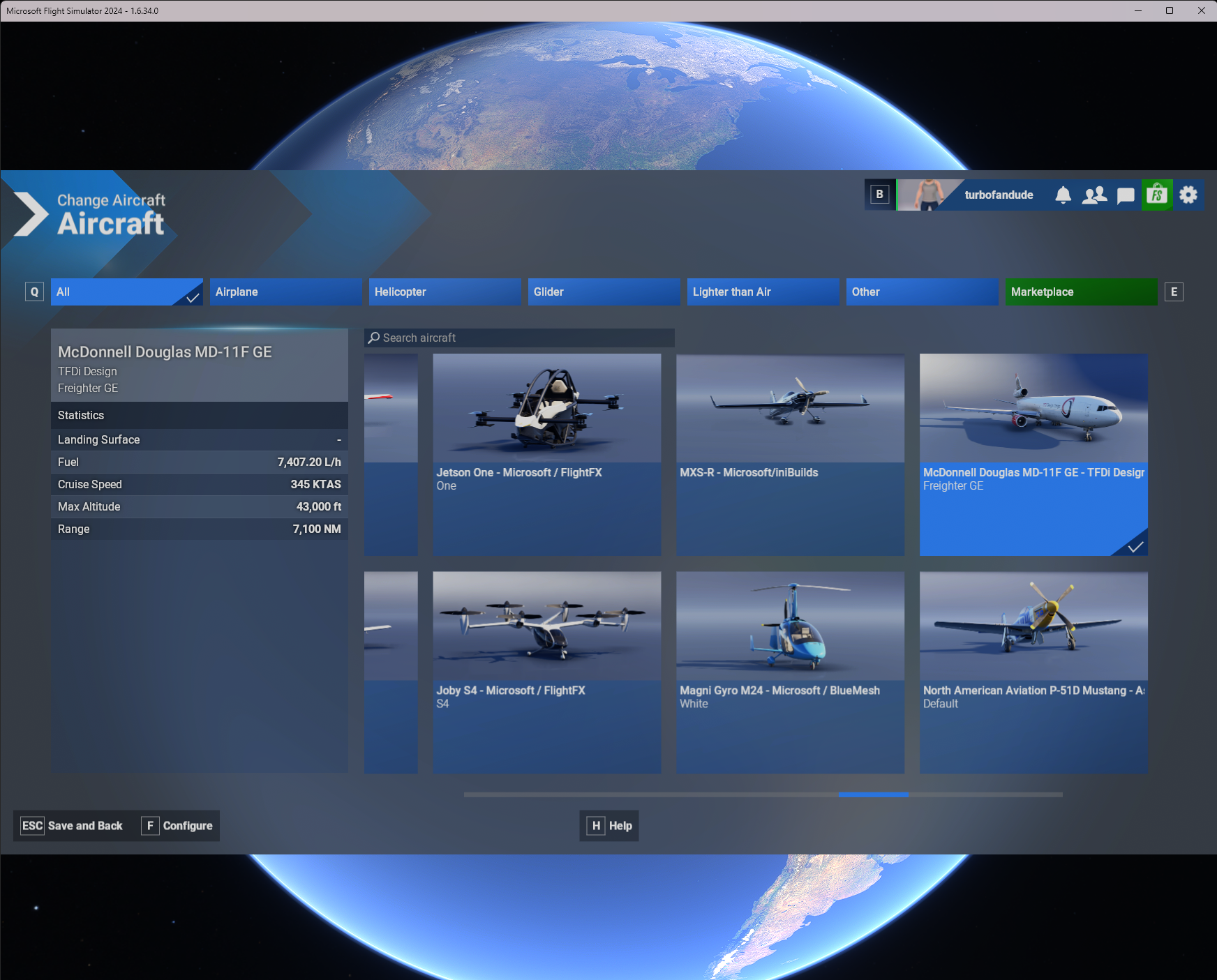
6) Select the correct variant on the botton of the screen then click "Livery" button and select the desired livery: