
Please note that the information provided in this article is for purchases via our webstore only.
The Client Area
You will first need to download the TFDi Design MD-11 Install Manager which is available via the Client Area on our website.
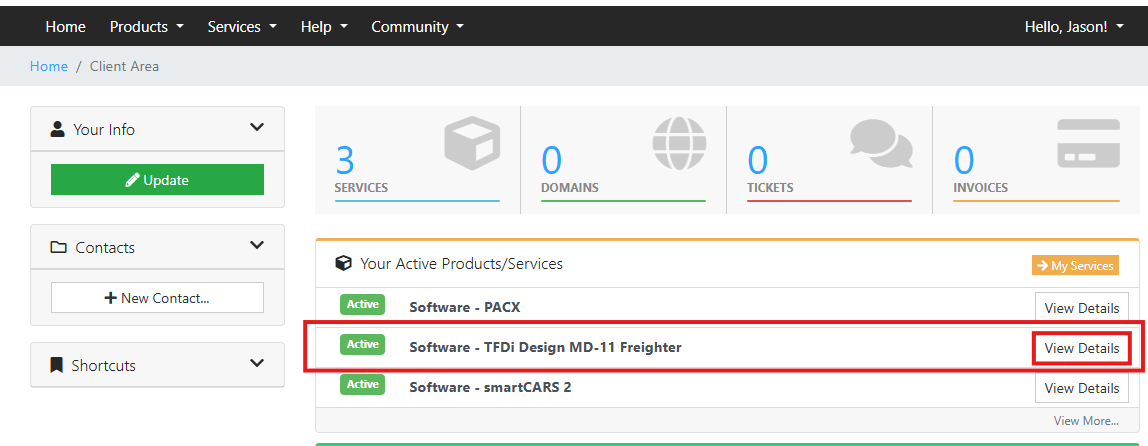
Within the Client Area you may see products different than what is displayed in the screenshot I've provided above. Click the View Details button next to the MD-11 product.
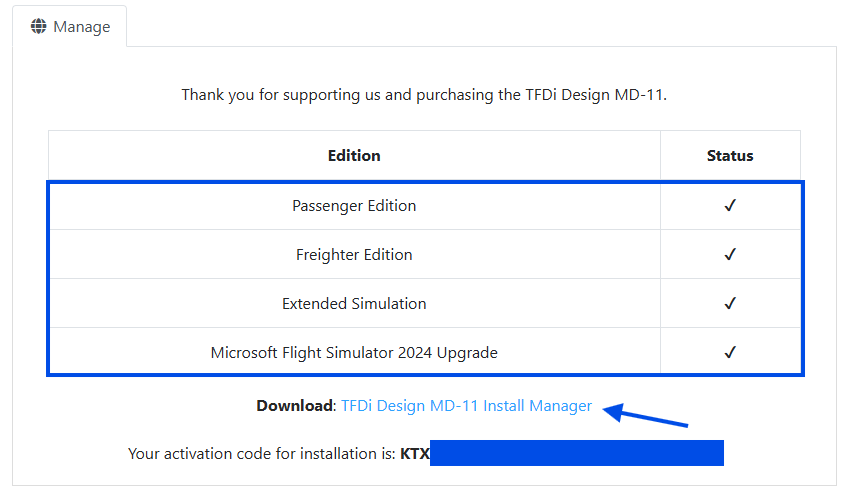
Scroll down a bit to see the manage details for the MD-11 product. A checkmark indicates that you are licensed for the particular module or add-on. A Buy button may appear in this column if you are not licensed for this module or add-on.
Click the TFDi Design MD-11 Install Manager to download the installer for the aircraft. Your activation code is required to install and update the aircraft. Please do not share this key as it is unique to you and your purchase.
TFDi Design MD-11 Install Manager

The installer is a <5 MB file that will require you to have administrator privileges on your computer. Double clicking the installer will begin the installation process.
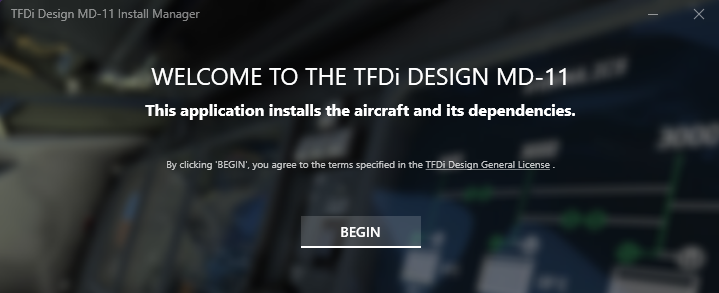
Our EULA (End User License Agreement) can be found on our website, here.
Click the BEGIN button to start the process.
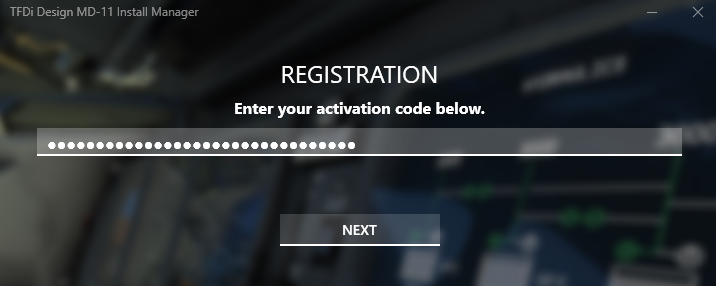
You will be presented with a text field to enter in your Activation Code, from the previously shown Client Area. You may copy & paste the code into this field or type it out. Please note that the code will not be displayed, each alphanumerical character is displayed with a dot in place of the entered character.
Click NEXT to proceed
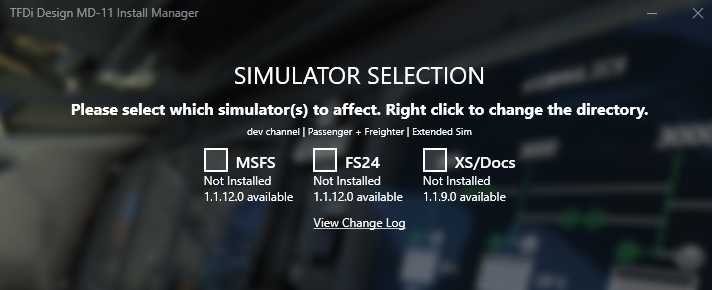
Here you will be presented with a variety of choices based on your license. For the purposes of this support article we will only discuss the MD-11 for Microsoft Flight Simulator 2020, Microsoft Flight Simulator 2024 and the Extended Simulations add-on.
The Change Log for the product is routinely updated based on our update and release cycle. The aircraft is under continuous improvements and we encourage you to review the change log to see if a feature or function has recently been added, changed, fixed, or improved.
By default the installer will install the aircraft into the default Community folder of your selected simulator. If you mouse over the checkbox to the left of your desired simulator it will also indicate the default location that the aircraft is about to be installed.
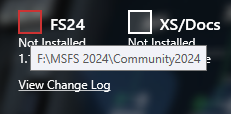
Your location may be different than this screenshot
Microsoft Flight Simulator 2020
Microsoft
C:\Users\[Your Username]\AppData\Local\Packages\Microsoft.Flight.Simulator_8wekyb3d8bbwe\LocalCache\Package\CommunitySteam
C:\Users\[Your Username]\AppData\Roaming\Microsoft Flight Simulator\Packages\Community
Microsoft Flight Simulator 2024
Microsoft
C:\Users\[Your Username]\AppData\Local\Packages\Microsoft.Limitless_8wekyb3d8bbwe\LocalCache\Packages
Steam
C:\Users\[Your Username]\AppData\Roaming\Microsoft Flight Simulator 2024\Packages\Community
Note: For the purposes of this support article we will assume a default location from when one of the choices above.
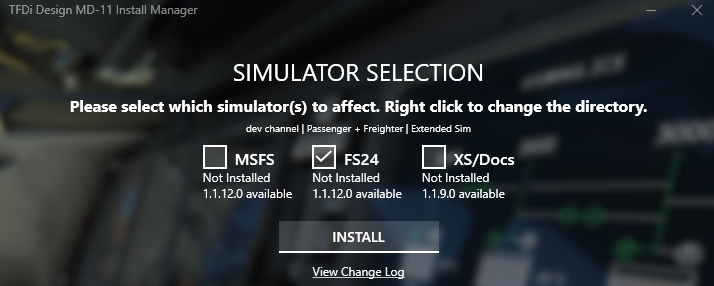
You will need to verify you have checked the appropriate box(es) for your desired installation. You can install the aircraft into multiple simulators at one pass, including the Extended Simulation module.
- The Microsoft Flight Simulator 2020 module does not need to be installed for the 2024 version of the aircraft to properly function.
- The FS24 option is only available to customers who...
- Bought the aircraft after January 12, 2025
- Paid the $5 USD upgrade charge if they purchased the aircraft before January 12, 2025.
- The XS (Extended Simulation) option is only available to customers who...
- Purchased the Extend Simulations module
Once you have selected the desired install options, click Install to begin the installation process.
The TFDi Design MD-11 is a complex aircraft simulation which will require approximately 10 GB of free hard drive disk space. Based on your internet connection, the download and subsequent installation of files may take several minutes.